
Project panel #
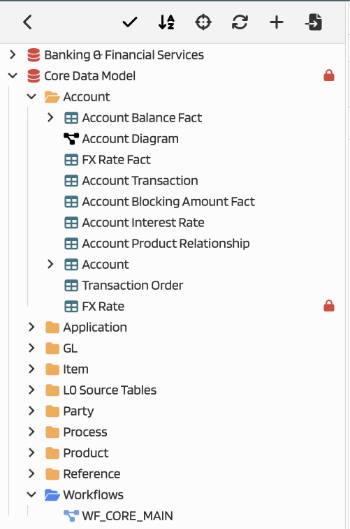
The panel provides a hierarchical view of project elements and tools for bulk editing. It consists of:
- Icon bar
- Element tree
Icon bar #
The icon bar provides shortcuts for working with elements in the tree:
| Element | Description |
|---|---|
 | Switch to selection mode |
 | Sort alphabetically |
 | Location of current element in the tree |
 | Refresh |
 | Add system |
 | Import system |
Select mode #
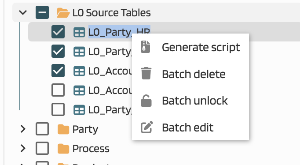
In selection mode you can perform bulk actions on selected elements (delete, edit, script generation). The context menu shows actions relevant to the current selection.
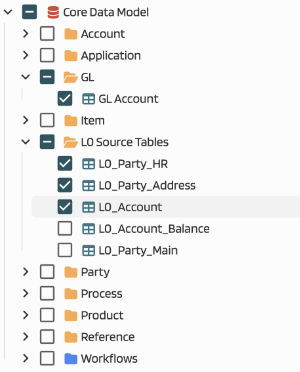
In this mode, a checkbox appears next to each element so you can include it in the bulk action.
Sorting #
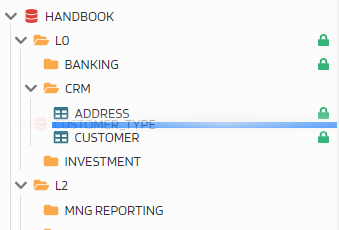
Two sorting modes are available: user-defined and alphabetical. Use this button to switch between them. In user-defined mode you can reorder elements by dragging them.
Refresh Display #
After certain actions (for example, renaming an element or changes made by other users), refresh the panel to show the current state.
Adding a System #
Opens the dialog for adding a new system. Systems have no parent folder in the tree, so this option is placed in the icon bar instead of the context menu.
System Import #
Import a system from a .json file exported from another MetaCroc project. For a successful import, both projects should have matching settings; this is useful for cloning systems.
Context menu #
Right-click an element to open its context menu.
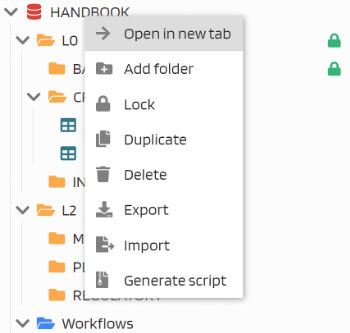
| Menu item | Action |
|---|---|
| Open in new tab | Opens the item in a new tab in the workspace |
| Add folder | A folder under the selected system is added |
| Lock | Locks the system object for current user. Does not lock subordinate objects. |
| Duplicate | Creates a copy of the selected element and its children. You can choose a suffix for the copied names. |
| Delete | Deletes the entire system including its children |
| Export | Exports the system in .json format for import into another MetaCroc instance |
| Import | Starts the import wizard |
| Generate script | Opens the Script Generation Wizard |
Mass script generation #
You can generate output scripts for all elements in a folder. Right-click the folder and choose Generate script:
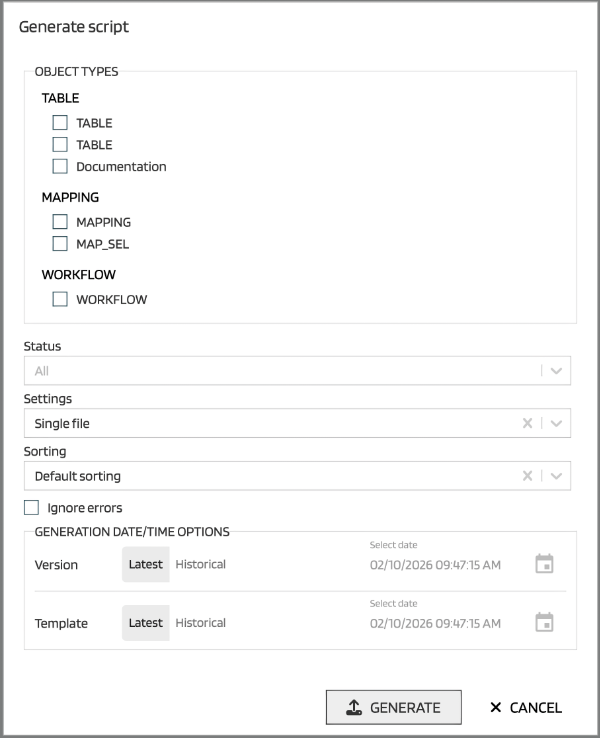
There are several options:
| Option | Description |
|---|---|
| Object types | Select which object types to include in the generation. |
| Status | Filter by element status. |
| Settings | Choose output layout: a single file or one file per output in a ZIP. |
| Sorting | Use tree order or alphabetical order. |
| Ignore errors | Continue generation even when some items fail; errors are skipped. |
You can also generate scripts for older versions of elements or templates using the datetime pickers.